
Accessibility Widgets: Helpful Shortcut or Risky Quick Fix? CMS Options Compared
A practical guide to accessibility widgets and overlays, including what they can and cannot fix, legal and usability risks, and better CMS options in Umbraco, Optimizely, Hygraph, Contentful, and Contentstack.
Accessibility widgets are often sold as the fast way to make a website accessible. Add a script, show a floating icon, let visitors change contrast or text size, and the job appears done. Unfortunately, real accessibility does not work like that.
A widget can be useful when it gives users optional preferences, such as contrast mode, text spacing, animation pause controls, or a link to an accessibility statement. But an overlay widget cannot reliably fix missing labels, broken keyboard navigation, poor heading structure, inaccessible forms, incorrect ARIA, inaccessible PDFs, confusing content, or custom components that were never built properly.
The smarter approach is to use your CMS to prevent accessibility issues at the source. That means better content models, required media metadata, accessible reusable components, editor guidance, approval workflows, automated checks, manual testing, and ongoing governance.
What Accessibility Widgets Can and Cannot Do
The difference between a useful preference control and a risky overlay is whether the tool supports accessibility or pretends to replace it.
Can Help Preferences
A widget can expose optional controls for contrast, text spacing, reduced motion, reading support, or accessibility statement access when the widget itself is accessible.
Cannot Guarantee WCAG
Widgets cannot reliably make every page, form, component, PDF, video, keyboard flow, and screen reader experience WCAG compliant after the fact.
Can Create Risk
Overlays may conflict with assistive technology, hide real problems, slow remediation, add third-party script risk, and create false confidence.
CMS Controls Matter
Accessible content is easier to maintain when the CMS requires alt text, captions, headings, field validation, accessible components, and review workflows.
Testing Still Matters
Automated checks are useful, but keyboard testing, screen reader testing, content review, and journey testing are still needed for meaningful accessibility.
Best Use
Use widgets as optional enhancement only. Fix accessibility in the design system, frontend code, content model, editor workflow, and QA process.
What Is an Accessibility Widget?
An accessibility widget is usually a small tool added to a website interface. It may appear as a floating accessibility icon, toolbar, menu, or panel. Common features include text resizing, contrast changes, cursor changes, reading masks, text spacing, pause animation controls, screen reader modes, keyboard navigation helpers, and AI-generated adjustments.
Some widgets are simple user-preference controls. These can be helpful if they are accessible, unobtrusive, and honest about what they do. Other widgets are accessibility overlays. These are more risky because they claim to automatically repair accessibility problems by injecting JavaScript into the page at runtime.
The problem is that many accessibility defects are structural. A script loaded after the page renders cannot reliably infer the meaning of a form field, the correct label for a button, the intended reading order of a complex layout, the purpose of a chart, or the business context behind an image.
Why Overlay Claims Need Care
In 2025, the United States Federal Trade Commission approved a final order requiring accessiBe to pay USD 1 million after allegations that it misrepresented the ability of its AI-powered accessibility plug-in to make websites WCAG compliant. The final order bars unsupported claims that automated products can make any website WCAG-compliant or ensure ongoing WCAG compliance.
The European Disability Forum and the International Association of Accessibility Professionals have also warned that accessibility overlays do not guarantee compliance with European accessibility legislation. Their position is simple: overlays may help some users in limited ways, but they do not replace fixing the website itself.
For business owners, the practical lesson is not that every widget is bad. The lesson is that a widget should never be your accessibility strategy.
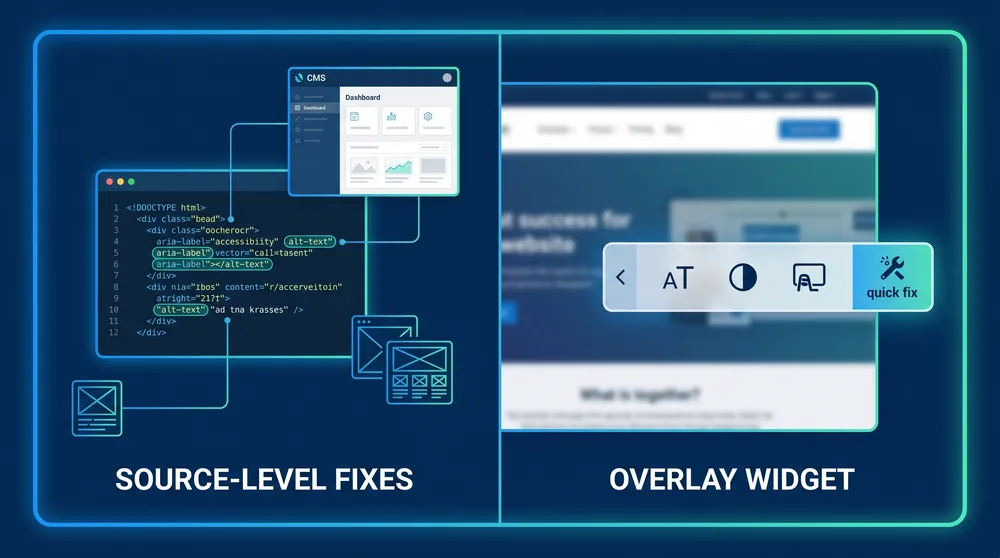
Fix the Source, Not Only the Surface
A floating toolbar can change parts of the interface, but it cannot reliably rebuild broken semantics, inaccessible components, poor content, missing metadata, or faulty user journeys.
What to Use Instead of a Quick-Fix Overlay
These controls reduce recurring accessibility problems because they are built into the publishing and development process.
Alt Text Fields
Make meaningful media metadata easy to enter, required where appropriate, localizable, and reviewable before publishing.
Component Rules
Use accessible buttons, links, accordions, tabs, modals, cards, forms, filters, navigation, and tables in the design system.
Editor Checks
Check headings, link text, image descriptions, tables, embedded media, contrast choices, and rich text before content goes live.
Workflow Gates
Add review stages for pages, templates, media, campaigns, PDFs, legal content, and high-value conversion paths.
Manual Testing
Test keyboard navigation, screen reader output, focus states, form errors, mobile behaviour, and real user journeys.
Monitoring
Use automated scans and regression checks after launch, but treat them as safety nets rather than proof of full compliance.
Accessibility Widget Options by CMS
The CMS does not remove the need for accessible frontend development. It does, however, decide how easy it is for editors to keep content accessible after launch. Here is how Umbraco, Optimizely, Hygraph, Contentful, and Contentstack compare.
| CMS option | Widget or tool options | Best use | Watch-out |
|---|---|---|---|
| Umbraco | Umbraco can support third-party widgets and packages, including marketplace widget options such as All in One Accessibility. More importantly, Umbraco supports configurable workflows, mandatory image ALT text, structured headings and tables, custom validation, approval workflows, and API integrations for accessibility checks. | Best when you want source-level control over templates, media fields, rich text configuration, validation, and editor governance. | A widget can be added, but it should not replace properly configured document types, media fields, accessible templates, and manual testing. |
| Optimizely | Optimizely offers stronger accessibility-adjacent tooling than a simple overlay approach, including the Opal Accessibility Assistant connector, the Web Accessibility Evaluation agent, accessible multimedia guidance, and free FEAT templates with built-in accessibility. | Best for enterprise teams that want accessibility checks inside governance, templates, CMS workflows, preview, and QA processes. | Optimizely documentation notes that developers handle alt text implementation for CMS images, so accessibility still depends on project-specific build choices. |
| Hygraph | Hygraph is headless, so a floating widget would be added in the frontend, not inside the CMS delivery layer. Better CMS-side options include asset model extensions for alt text and descriptions, the AltText.ai integration, localization, workflows, custom roles, and granular permissions. | Best for GraphQL-first teams that want structured content, reusable components, localized metadata, and automated alt text assistance with human review. | Because Hygraph is frontend-agnostic, the accessibility of the final website depends heavily on the frontend implementation and component library. |
| Contentful | Contentful can integrate tools through its marketplace and app ecosystem. Useful accessibility-support options include content model validation, asset descriptions, AltText.ai integration, and AI Actions for accessibility, readability, SEO metadata, translation, and alt text support. | Best when teams need structured content governance, reusable content, AI-assisted editorial QA, and marketplace integrations across many channels. | A Contentful-powered site can still be inaccessible if the frontend renders poor headings, forms, links, focus states, or custom components. |
| Contentstack | Contentstack says customers can integrate third-party accessibility tools, while the platform provides headless content control. Contentstack Assets supports configurable metadata, mandatory fields, validation, AI suggestions for alt text, localization, roles, and reusable asset governance. | Best for enterprise teams that want asset governance, workflow control, localization, AI-assisted metadata, and multi-site content operations. | Contentstack does not enforce frontend accessibility at platform level, so templates, components, and user journeys still need separate accessibility testing. |
The Best CMS Accessibility Strategy
Use the CMS to make good accessibility the easiest editorial path. Required fields, clear help text, reusable accessible blocks, locked-down heading choices, image metadata, caption and transcript fields, preview, and approval workflows will do more than a floating icon ever can.

When an Accessibility Widget Is Acceptable
An accessibility widget can be acceptable when it is positioned as an optional enhancement, not a compliance claim. For example, a website may offer a visible control for high contrast mode, reduced motion, larger spacing, or an accessibility statement. These controls can help some users and make the business commitment more visible.
To be worth using, the widget should meet a few basic tests:
- It must be keyboard accessible.
- It must work with screen readers without causing duplicate announcements or focus traps.
- It must not override user browser or assistive technology settings unexpectedly.
- It must not claim to make the entire website WCAG compliant unless that claim is properly evidenced.
- It must not delay real remediation work.
- It should be monitored for performance, privacy, and third-party script risk.
When a Widget Is the Wrong Choice
A widget is the wrong choice when the website has fundamental accessibility problems: forms without labels, menus that cannot be used by keyboard, modals that trap focus, missing visible focus states, poor colour contrast, inaccessible PDFs, images without meaningful alternatives, broken heading hierarchy, or custom components that do not expose the right semantic information.
Those problems need source-level fixes. The work may involve UX, UI, frontend code, backend templates, CMS content modelling, content editing, media governance, and QA. It is less glamorous than adding a toolbar, but it is the work that actually improves access.
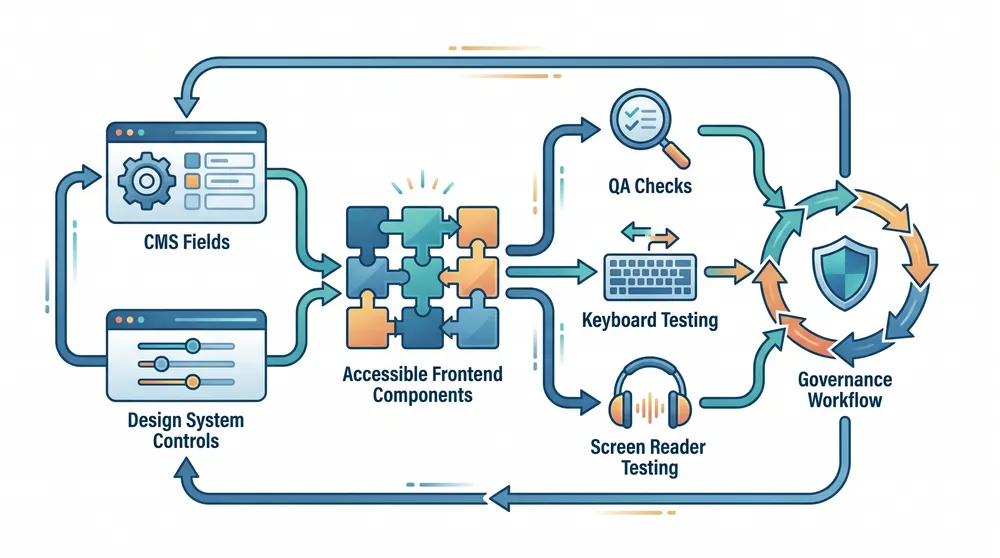
Build the Widget Controls Into the System
If users need contrast, reduced motion, captions, transcripts, clear labels, and readable content, those requirements should exist in the design system and CMS model before the page is published.
Recommended Plan
For small business websites
Do not buy a widget as a substitute for accessibility work. Start with a light audit, fix template and form issues, add CMS fields for alt text and captions, publish an accessibility statement, and only consider a preference widget if it is accessible and honest.
For Umbraco websites
Configure document types, media types, Rich Text Editor rules, heading options, colour choices, custom validation, and workflows. Consider editor-side accessibility checking where it improves content quality, but avoid claiming that a widget alone delivers compliance.
For Optimizely websites
Use platform-aligned options such as accessible templates, Opal accessibility scanning, multimedia guidance, and governance workflows. Audit Visual Builder components, image implementation, forms, personalization variants, and frontend templates.
For Hygraph websites
Model accessibility metadata directly: alt text, captions, transcripts, document descriptions, locale-specific alternatives, and component constraints. Use AltText.ai or AI assistance as a draft helper, then require review before publishing.
For Contentful websites
Use content model validation, required fields, marketplace integrations, AI Actions, asset descriptions, and editorial review. Treat any frontend widget as an enhancement only; the component rendering layer still needs accessibility testing.
For Contentstack websites
Use Assets metadata, mandatory fields, validation, roles, localization, AI alt text suggestions, and workflow governance. Add third-party accessibility tools where helpful, but test the delivered frontend with WCAG, keyboard, and assistive technology checks.
Final Recommendation
Accessibility widgets are not magic. The safest, most effective approach is to build accessibility into your CMS, design system, frontend code, content process, and QA workflow. A widget may support a better experience, but it should never be the experience.
If the goal is lower risk, better usability, stronger SEO foundations, and a more inclusive digital product, spend the budget on source-level fixes first. Then use widgets only where they genuinely help users without getting in the way.
Sources Checked
- FTC final order on accessiBe
- EDF and IAAP statement on accessibility overlays
- W3C WCAG overview
- Umbraco web accessibility features
- Umbraco accessibility checking
- Umbraco All in One Accessibility package
- Optimizely Opal Accessibility Assistant
- Optimizely Web Accessibility Evaluation agent
- Optimizely FEAT templates
- Optimizely accessible multimedia content
- Hygraph AltText.ai integration
- Hygraph asset model extension
- Hygraph roles, permissions, and workflows
- Contentful AI Actions
- Contentful AltText.ai partner
- Contentstack accessibility statement
- Contentstack Assets metadata and AI suggestions